How to Edit a PDF on Mac: 3 Free Methods | Tools4PDF
Edit a PDF on Mac with Preview, a free online editor or Word conversion. Step-by-step instructions, limits and fixes for scanned files.
 Por Admin•5 min read•Oct 22, 2026
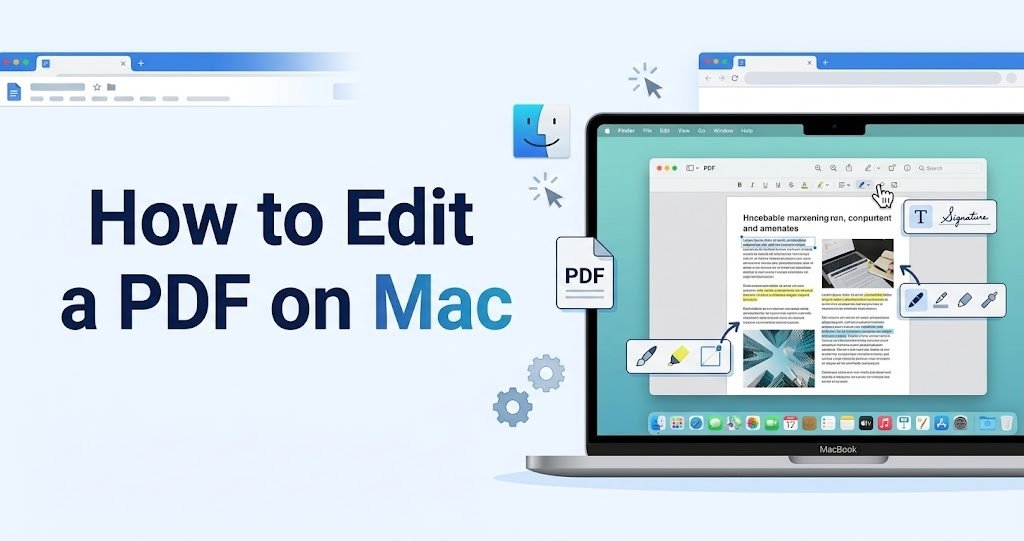
PDFs are built to look the same everywhere, which is great for sharing and awkward for editing. On a Mac you can usually get by without buying any software, but the right method depends on what you want to change. Adding a note is easy. Rewriting a paragraph is a different job.
This guide covers three free ways to edit a PDF on a Mac: the built-in Preview app, a free online editor, and converting the file to Word. You will also see how to handle scanned PDFs, organize pages and fix common problems.
Quick answer: For notes, highlights and signatures, use Preview. To add text, images or shapes in your browser, use the Tools4PDF Edit PDF tool. To rewrite existing text, convert the PDF to Word, edit it and convert it back.
What Does "Editing" a PDF Actually Mean?
People use the word for several different tasks, and each one needs a different tool:
- Annotating: adding comments, highlights, arrows and drawings on top of the page.
- Adding content: placing new text, images or shapes onto a page.
- Changing existing text: rewriting words that are already part of the document.
- Organizing pages: reordering, deleting, rotating, merging or splitting pages.
- Signing and filling forms: adding a signature or completing form fields.
Knowing which of these you need saves time, because the built-in tools cover the first and last two well and struggle with the third.
Method 1: Edit a PDF With Preview
Preview comes with every Mac, works offline and handles most light editing.
How to mark up a PDF in Preview
- Open the PDF in Preview. Right-click the file, choose Open With, then Preview.
- Click the Show Markup Toolbar button, or choose View > Show Markup Toolbar.
- Pick a tool: text box, shapes, highlight, sketch or notes.
- Click on the page to place it, then drag to resize or move it.
- Save with File > Save, or use File > Export as PDF to create a clean copy.
How to sign a PDF or fill in a form
Use the signature tool in the Markup toolbar to create a signature and place it on the page. If the PDF has fillable fields, click a field and type. Preview can also store your signature so you do not have to redraw it each time.
How to rearrange pages in Preview
Open the thumbnail sidebar from the View menu. Drag a thumbnail to move a page, select one and press Delete to remove it, or rotate a page from the toolbar. You can also drag pages from one PDF into another to combine them.
Where Preview falls short
Preview cannot change text that is already in the document. You can cover it or add new text on top, but you cannot edit the original words. Newer versions of macOS can recognize text in some scans so you can select and copy it, but a scanned page is still a picture underneath and you cannot edit that text.
Method 2: Edit a PDF Online With Tools4PDF
When you want to add content without installing anything, a browser-based editor works on any Mac and does not depend on a particular macOS version.
Steps
- Open the Edit PDF tool in Safari or Chrome.
- Upload your PDF.
- Add text, images, shapes or highlights where you need them.
- Download the edited file.
The tool is listed as free, with no signup and no watermark on the result. It is a good fit for filling in a blank area, adding a label, marking a section or dropping in a logo.
If you need to mark up a contract or show proposed changes, see our guide on how to redline a PDF.
A note on privacy
Your file is uploaded for processing and deleted afterward, according to Tools4PDF. For small files the work happens in your browser, and larger files are sent over an encrypted connection. If a document is highly sensitive, such as a signed agreement or financial record, it is reasonable to keep it local and use Preview instead.
Method 3: Convert the PDF to Word, Edit, Then Convert Back
When you need to rewrite text, change formatting or restructure a document, the most reliable route is to turn the PDF into an editable file.
- Upload the file to the PDF to Word converter.
- Download the DOCX file and open it in Microsoft Word or Pages.
- Edit the text, images and layout as you would in any document.
- Convert it back with the Word to PDF converter.
This works best for text-heavy documents. Complex layouts, with columns, tables or unusual fonts, can shift during conversion, so check each page before you send the final version. If you are combining several Word files before converting, our guide to merging Word documents covers the options.
Which Method Should You Use?
| Goal | Best method | Changes existing text? | Works offline? |
|---|---|---|---|
| Highlights, notes and signatures | Preview | No | Yes |
| Fill in a form | Preview | No | Yes |
| Add text, images or shapes in a browser | Tools4PDF Edit PDF | No | No |
| Rewrite paragraphs or reformat | PDF to Word, then back | Yes | No |
| Reorder or delete a few pages | Preview | No | Yes |
| Merge, split or rotate many files | Tools4PDF page tools | No | No |
Organize Pages Without Opening an Editor
Page jobs are often faster with a dedicated tool:
- Merge PDF joins several files into one document in the order you choose.
- Split PDF pulls out a range of pages or separates a long file into parts.
- Rotate PDF Pages fixes pages that came out sideways or upside down.
- Compress PDF shrinks a large file so it is easier to email or upload.
If you need a page as a picture, use PDF to JPG. To turn photos or scans into a PDF, use JPG to PDF.
How to Edit a Scanned PDF
A scanned PDF is really a set of pictures, so you usually cannot select, search or edit the text. The fix is OCR (optical character recognition), which reads the image and turns it into real text. The OCR PDF tool does this. Note that it is one of the tools that requires you to sign in or upgrade. After OCR, you can search the document and convert it to Word for editing.
Quick test: try to select a word. If you can highlight it, the PDF already has text. If you drag a box over a picture instead, it is a scan.
Edit a Protected PDF
If a PDF is password protected, you need to remove the protection before you can change it. The Unlock PDF tool is built for files you are allowed to open, and you can add a password to your own file afterward with Protect PDF. Both tools require you to sign in or upgrade.
Troubleshooting Common Problems
I cannot select or edit the text. The file is probably a scan. Run OCR first, then edit.
The layout broke after converting to Word. Complex pages with tables, columns or special fonts often shift. Fix the spacing in Word before you convert back, or use Edit PDF to adjust small areas instead.
Preview will not save my changes. Try File > Export as PDF to save a fresh copy in a new location.
The file is too large to send. Run it through Compress PDF before you email or upload it.
My edits look different on another device. Convert the final version to PDF so fonts and layout are locked in before you share it.
Edit PDFs on Your Mac With Tools4PDF
Most Mac users never need a paid PDF suite. Preview handles quick annotations, a free browser editor covers added content, and a Word conversion handles the heavy rewriting. Tools4PDF puts the extra steps in one place, so you can merge, split, rotate, compress and convert without installing anything.
Browse the full set of PDF tools, check pricing for higher limits, or read more guides on the Tools4PDF blog. New to the format? Start with what a PDF is and why it matters.
Frequently Asked Questions
Can I edit a PDF on a Mac for free?
Yes. Preview is free and built in, and the Tools4PDF Edit PDF tool is listed as free with no signup.
Can Preview edit the text in a PDF?
No. Preview can add new text, shapes, highlights and signatures, but it cannot change words that are already in the document. To do that, convert the file to Word.
What is the difference between annotating and editing a PDF?
Annotating adds marks on top of the page, such as comments and highlights. Editing changes the content itself, such as rewriting a paragraph or replacing an image.
Why can't I edit my PDF?
It may be a scanned document, which needs OCR, or it may be password protected, which needs to be unlocked first.
Will converting a PDF to Word change the formatting?
It can. Simple, text-based documents convert cleanly, while pages with tables, columns or unusual fonts may need cleanup in Word.
Is it safe to upload a PDF to an online editor?
Tools4PDF states that files are processed securely and deleted after processing. For highly sensitive documents, use an offline option such as Preview. See the FAQ page for how file size limits and plans work.
Publishing Notes (remove before posting)
Internal links used (all verified live on tools4pdf.com): /tools, /tools/edit-pdf, /tools/pdf-to-word-converter, /tools/word-to-pdf-converter, /tools/merge-pdf, /tools/split-pdf, /tools/rotate-pdf-pages, /tools/compress-pdf, /tools/pdf-to-jpg-converter, /tools/jpg-to-pdf-converter, /tools/ocr-pdf, /tools/pdf-unlock, /tools/lock-pdf, /blogs, /blogs/how-to-redline-a-pdf, /blogs/merge-word-documents, /blogs/what-is-a-pdf-definition-benefits-and-history, /pricing, /faq.
Inbound links to add after publishing: from /tools/edit-pdf, /tools/pdf-to-word-converter and /tools/ocr-pdf, from /blogs/how-to-redline-a-pdf, and from your legal paper size post (link "editing PDFs on Mac" to this one).
Claims I kept narrow on purpose:
- The Edit PDF page lists text, images, shapes and highlights. The editor did not load during the crawl, so I did not promise signatures, form filling or drawing in it.
- OCR, Unlock, Protect and Add Page Numbers are marked "sign in or upgrade" on the site, so the article says that and does not call them free with no signup.
- Preview steps follow Apple's Markup toolbar documentation. Menu names can differ slightly between macOS versions.
Escrito por Admin
Especialista Editorial
Artículos Relacionados
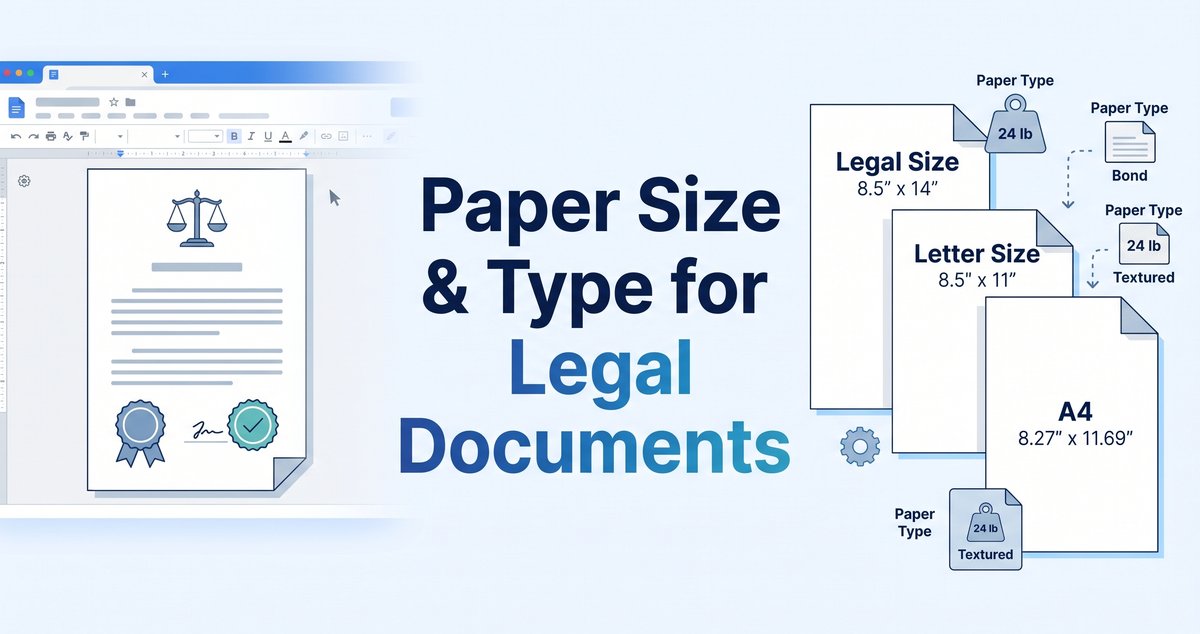
Legal Paper Size and Type: Complete Guide | Tools4PDF
Learn when to use Letter, Legal or A4, which paper weight suits contracts and filings, and how to create correctly sized PDFs online.
How to Make a Google Doc Landscape (Desktop, Mobile & One Page)
Change a Google Doc to landscape in 3 clicks, rotate just one page, fix the missing option, and export a clean landscape PDF. Free guide.
How to Redline a PDF Free in 3 Easy Steps?
Learn how to redline a PDF without any cost with Tools4PDF's Edit PDF tool. Draw red lines, mark changes, and share a clear