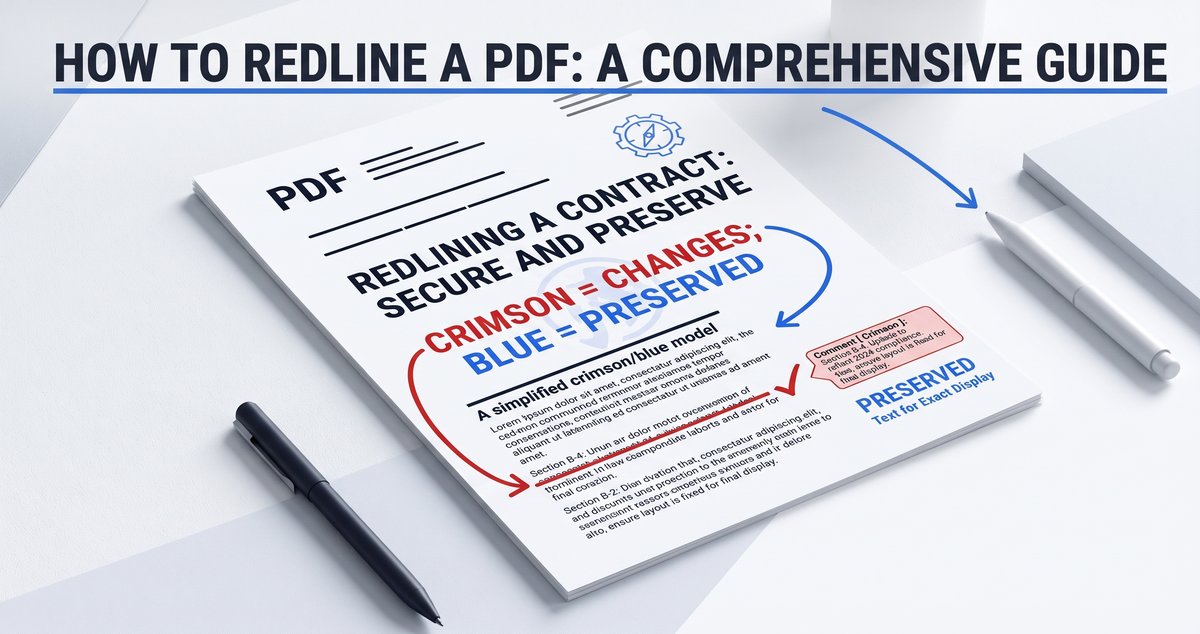
How to Redline a PDF Free in 3 Easy Steps?
Learn how to redline a PDF without any cost with Tools4PDF's Edit PDF tool. Draw red lines, mark changes, and share a clear
 By Shiza Zahid•5 min read•Sep 21, 2026
When you're reviewing a contract, report, or proposal, you often need to show exactly what should change. Redlining a PDF lets you mark up edits clearly, without printing anything or emailing files back and forth.
In this guide, we'll show you how to redline a PDF using Tools4PDF's Edit PDF tool. You'll learn how to draw redline marks, manage changes, and fix common issues all from your browser.
How to Redline a PDF: Step-By-Step Guide
You can redline a PDF in three simple steps using Tools4PDF. No installation needed everything runs in your browser.
Step 1: Open Your PDF in Edit PDF
First, bring your document into the workspace so you can start marking it up.
- Go to tools4pdf.com/tools/edit-pdf.
- Click Upload and select your file from your device.
- Wait a moment while the file loads once it opens, you'll see the editing toolbar at the top.
Step 2: Mark Changes With Red Lines
Now you can visually show what needs to change in the document.
- Click Shapes in the top toolbar.
- From the shapes menu, select Line.
- Click and drag on the page to draw a line over or beside the text you want to flag.
- Once the line is drawn, open the color option and change it to red this matches the traditional legal/editorial redline style.
- Repeat this across the pages that need markup, using lines to underline, strike through, or box off content.
Step 3: Save and Download Your Redlined PDF
Once your marks are in place, finish up the file so you can share it.
- Review each page to confirm your red lines are placed correctly.
- Click Save or Download to export the finished file.
- Share the redlined PDF with your reviewers or stakeholders by email or file link.
What Does Redlining a PDF Mean?
Redlining is the practice of marking up a document so everyone can see what should be edited, removed, or added. It's common in legal work, real estate, corporate contracts, and editorial reviews.
Typical redlining actions include:
- Drawing red lines around content that should change
- Using lines to underline additions or strike through content for deletion
- Keeping clear visual contrast between the original content and proposed edits
With Tools4PDF's Edit PDF tool, you can do all of this directly online instead of printing, marking by hand, and scanning the document back in.
How to Track Changes in a PDF Document
You have two main approaches to tracking changes in a PDF: staying inside the PDF, or converting to Word.
Option 1: Mark Up in PDF and Use Version Names
If you'd rather stay in PDF format:
- Add your red lines in Tools4PDF's Edit PDF tool.
- Save the file with a clear name, like "Contract_review_v2_2026-01-15."
- Keep each version separate so you can compare what changed.
- For complex projects, keep a simple change log in a separate document.
This keeps everything in PDF format, which works well for teams that share and archive PDFs as their main file type.
Option 2: Convert to Word for Track Changes
If your team relies on Word for deeper revision history:
- Use a PDF-to-Word converter to turn your file into an editable Word document.
- Open it in Word and turn on Track Changes.
- Make your edits while Word records each change.
- Convert it back to PDF once you're done, and share the updated file.
You can combine both approaches — use Word for heavy drafting, then switch back to PDF for final redlining and sharing.
How to Add, Edit, or Remove Redline Marks in a PDF
Sometimes you need to adjust your lines after a discussion, or remove marks before sending the final version.
- Open your redlined PDF again in Edit PDF.
- Click on any line or shape to select it.
- Drag it to reposition, or delete it if it's no longer needed.
- Change the color if you want to group marks by reviewer or type of edit (e.g., red for deletions, another color for additions).
Why and When to Redline a PDF
Redlining makes document reviews more transparent and easier to follow. You might use it when:
- You're negotiating contracts and want each party to see proposed clause changes
- You're reviewing reports and want to suggest content or layout changes
- You're checking documents for compliance and regulatory requirements
- You're collecting feedback from several stakeholders on one document
- You need a clear record of how a document evolved over time
Keeping redlines inside the PDF means every reviewer sees the same marks, no matter what device they're using.
Best Practices for Clear, Professional Redlines
A few simple habits make your redlined PDFs easier for others to read and act on.
- Stick to one consistent color (red) for all your markup lines
- Save versions with clear, dated file names — not just "final" or "latest"
- Keep your lines precise and placed directly over the relevant text
- Review all pages before sharing, to make sure nothing is misplaced
- For long documents, consider a summary page listing the key changes and where to find them
Troubleshooting Common Redlining Issues
Redlining usually works smoothly, but a few issues can come up.
1. Lines disappear after saving
Make sure you wait for the file to fully process after clicking Save/Download. Always use the final exported file, not a cached preview.
2. You can't select or mark text
If your PDF is a scanned image, the text isn't selectable — but you can still draw lines directly over the image using the Shapes tool.
3. Multiple versions cause confusion
Agree on a naming convention, like "ProjectName_v1," "v2_reviewed," and so on, so everyone knows which file is current.
4. Lines look different on another device
Reopen the file in Tools4PDF, check your markup, and re-export if needed to make sure the changes are locked into the file.
Make Redlining PDFs Easier With Tools4PDF
With Tools4PDF, you can upload a PDF, go to Edit PDF, select Shapes → Line, and change the color to red to mark up your document — all in your browser, no installation required.
If you handle contracts, reviews, or approvals regularly, Tools4PDF's Edit PDF tool keeps every review fast, clear, and easy to share.
Frequently Asked Questions
Is there a way to redline a PDF without printing?
Yes. Upload your document to Tools4PDF's Edit PDF tool, use Shapes → Line to draw red lines over the parts you want to change. Everything happens online — no printing or scanning needed.
How do I put markups in a PDF?
Open your PDF in Tools4PDF's Edit PDF tool, click Shapes, choose Line, and draw over the text you want to flag. Change the color to red to match standard redline style.
How do I put a red line through text in a PDF?
In Edit PDF, select Shapes → Line, then draw the line directly over the text and set its color to red.
How do I redline a scanned document?
Even if the text isn't selectable, you can still draw red lines directly over the scanned image using the Shapes tool in Edit PDF.
How do I create a PDF with redlines to share with others?
Add your red lines using Shapes → Line in Edit PDF, then save and download the file. Share it by email or file link — your reviewers will see the same red marks.
Can I remove redline marks before sending the final version?
Yes. Reopen the file in Edit PDF, click on the line or shape you want to remove, and delete it. Keep one marked-up version for your records and a clean version for the final copy.
Read more about How to merge a word document?
Written by Shiza Zahid
Editorial Specialist
Related Articles
How to Merge Word Documents Freely? Step by Step Guide
Learn how to merge Word documents into one clean DOCX file using Tools4PDF (fast, free online) or Word's built-in Text from File feature.
What Is a PDF Definition, Benefits, and History
Learn what a PDF is, how it works, its key benefits, security features, and history. Then edit, compress, or convert PDFs free