Legal Paper Size and Type: Complete Guide | Tools4PDF
Learn when to use Letter, Legal or A4, which paper weight suits contracts and filings, and how to create correctly sized PDFs online.
 От Admin•5 min read•Oct 22, 2026
Picking the wrong paper for a legal document is a small mistake with an outsized cost. A contract that prints on the wrong size, a filing that a clerk sends back, or a will on flimsy paper that yellows within a few years can all cause delays and make a document look careless.
This guide covers the two choices that matter most: paper size and paper type. You will see how Letter, Legal and A4 differ, which weights and finishes suit different documents, what courts usually expect, and how to produce a correctly sized PDF with Tools4PDF.
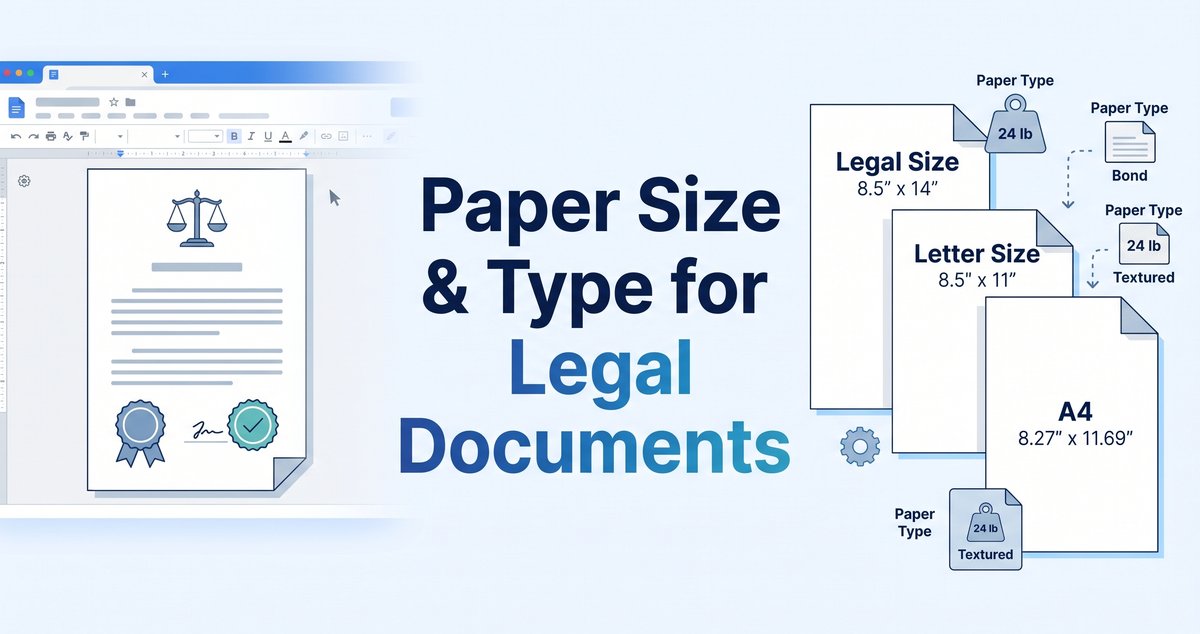
Quick answer: Legal paper is 8.5 × 14 inches (216 × 356 mm). It is common for contracts, deeds and some government forms. Many courts, however, specify standard Letter size (8.5 × 11 inches) for filed papers, so always check the rules of the court or office you are submitting to.
Paper Sizes Used for Legal Documents
Three sizes cover most situations. Which one you need depends mostly on where the document is going.
| Size | Inches | Millimetres | Typical use |
|---|---|---|---|
| Letter | 8.5 × 11 | 216 × 279 | Everyday documents and many court filings in the US and Canada |
| Legal | 8.5 × 14 | 216 × 356 | Contracts, deeds, leases and some government forms |
| A4 | 8.27 × 11.69 | 210 × 297 | The international standard, used almost everywhere outside North America |
Letter vs. Legal vs. A4
Letter and Legal are the same width. Legal is simply 3 inches taller, which gives you room for longer clauses and extra signature blocks on a single page. A4 is slightly narrower and taller than Letter, so a document built for one will not fit the other cleanly. If you print an A4 file on Letter paper without adjusting it, text near the edges can shift or get clipped.
Folio and foolscap
You may also see "folio" or "foolscap" in older templates and regional forms. These are close relatives of Legal paper, but the exact dimensions vary by country and by era. If a form asks for either one, confirm the measurements with whoever issued it instead of assuming Legal will do.
When to Use Legal Size
The extra length makes Legal useful for documents that carry a lot of structure:
- Contracts and agreements with several signature and initial lines
- Real-estate paperwork such as deeds and leases
- Government forms that are published on Legal stock
- Long tables or schedules attached as exhibits
It is less common for court filings than people assume. Many courts have moved to Letter. For example, New Jersey's court rules call for standard letter-size paper, and the Middle District of Pennsylvania's local rule 5.1 asks for roughly 8½ × 11 inch pages. Other courts and agencies have their own requirements, so treat these as examples, not a universal rule.
Choosing the Right Paper Type
Size gets the attention, but the paper itself affects how a document feels, how it photocopies and how long it lasts.
Paper weight
Weight is usually listed in pounds (lb) in the US or grams per square metre (gsm) elsewhere.
| Weight | Approx. gsm | Best for |
|---|---|---|
| 20 lb bond | about 75 gsm | Drafts, internal copies and most court filings |
| 24 lb bond | about 90 gsm | Contracts and agreements that you want to feel more substantial |
| 28 to 32 lb | about 105 to 120 gsm | Premium originals, cover pages and documents that will be handled often |
Heavier paper shows less print-through when you use both sides and holds up better to repeated handling. For routine filings, though, ordinary copy-paper quality is often exactly what the rules ask for. New Jersey's rule, for instance, calls for standard copy-paper weight and quality.
Finish, color and longevity
- White or off-white is the safe default. Some courts specify good-quality white paper for text pages, with other colors reserved for covers and dividers.
- Acid-free, archival paper is worth the extra cost for documents that must last for decades, such as wills, deeds and trust documents.
- Smooth, matte finishes photocopy and scan more cleanly than glossy or heavily textured stock.
Margins, Fonts and Spacing
Courts and agencies often set formatting rules alongside the paper rules. The Middle District of Pennsylvania rule above, as one example, asks for at least one-inch margins, double spacing, a 14-point font and text on one side of the page only. New Jersey's rule asks for at least 12-point type and double spacing. These details differ from court to court, so read the local rules before you finalize a filing.
How to Create a Correctly Sized Legal PDF
Most legal documents travel as PDFs now, which makes page size something you set before you convert, not after. Here is a reliable workflow.
Step 1: Set the page size in your word processor
In Microsoft Word, open the Layout tab, choose Size and select Legal (or Letter or A4, as required). Then check your margins and page breaks, since a longer page changes where text falls. If you are working in Google Docs, our guide to changing page setup and orientation shows where those settings live.
Step 2: Convert to PDF
Use the Word to PDF converter to turn your DOC or DOCX file into a PDF that keeps the page size, fonts and layout you set. If you only have a PDF and need to rework the text, the PDF to Word converter lets you edit it and then convert it back.
Step 3: Assemble the package
Legal filings are rarely a single file. Use Merge PDF to combine a main document with exhibits in the right order, and Split PDF to pull out a specific section. If you drafted the pieces in Word first, see how to merge Word documents before converting.
Step 4: Add page numbers
Numbered pages make exhibits and long agreements far easier to reference. The Add Page Numbers tool lets you choose the position, format and starting number.
Step 5: Fix and finish
- Use Rotate PDF Pages when a scanned page comes in sideways.
- Use Edit PDF to add notes, text or markup, and see our guide on how to redline a PDF when you need to show proposed changes.
- Use OCR PDF to make scanned pages searchable.
- Use Compress PDF if the final file is too large for an email or an e-filing portal.
- Use Protect PDF to add a password before you share sensitive documents, and Unlock PDF when you need to work on a file you are allowed to open.
Tools4PDF does not resize the pages of an existing PDF, so the size you set in your source document is the size you get. If a PDF arrives in the wrong size, it is usually quickest to fix the original file and convert it again.
Printing and Scanning Legal-Size Pages
- Check the printer. Most office printers handle Legal paper, but the tray may need adjusting, and some small desktop models do not support it.
- Print at actual size. Turn off "fit to page" or "shrink to fit," which quietly scales a Legal page down to Letter.
- Check the scanner. Some scanners and document feeders cut off the bottom of a longer page. Scan one page first and confirm the whole sheet is captured. If you scan photos or signed pages as images, the JPG to PDF converter can turn them into a PDF.
- Do not mix sizes by accident. A single PDF can contain pages of different sizes, which causes odd printing results. Keep a document to one size unless a filing specifically requires otherwise.
Common Mistakes to Avoid
- Assuming Legal size is required. Check the court's or office's rules before you format.
- Using A4 for a US filing, or Letter for an international one. The difference looks small but breaks layouts.
- Scaling when you print. It changes the effective margins and font size.
- Skipping page numbers on long documents. They make references and exhibits much easier to follow.
- Choosing thin paper for originals. Very light stock can feel flimsy and show print-through.
Make Legal PDFs Easier With Tools4PDF
Getting paper size and type right takes a few minutes of checking. Getting the digital version right takes a good set of tools. With Tools4PDF you can convert, merge, split, number, edit, compress and protect your files in your browser, with no software to install. Browse the full list of PDF tools, see pricing for higher limits, or read more guides on the Tools4PDF blog.
This article is general information, not legal advice. Court and agency requirements change, so confirm the current rules with the court or office that will receive your document.
Frequently Asked Questions
What size is legal paper?
Legal paper is 8.5 × 14 inches, or 216 × 356 mm. It is 3 inches longer than Letter and has the same width.
Do courts require legal-size paper?
Not necessarily. Some courts specify Letter size for filings, as the New Jersey and Middle District of Pennsylvania examples above show. Requirements vary by court and by document type, so read the local rules before you format.
What paper weight is best for legal documents?
Standard 20 lb copy paper is fine for drafts and many filings. For contracts and originals, 24 lb or heavier gives a more substantial feel. For documents that must last for decades, choose acid-free archival paper.
Can I print legal-size documents on a regular printer?
Many printers support Legal paper, but not all. Check the paper tray and printer specifications, and print at actual size so the page is not scaled down.
How do I make a PDF in legal size?
Set the page size to Legal in your word processor, then convert the file with the Word to PDF converter. The PDF will keep the page size you chose.
Can I add page numbers to a legal PDF?
Yes. Use the Add Page Numbers tool to choose where the numbers appear and which number to start from. The FAQ page explains how file size limits and plans work.
What is the difference between legal, folio and foolscap?
They are similar long-format sizes, but their exact dimensions vary by region. Confirm the measurements on any form that asks for folio or foolscap.
Publishing Notes (remove before posting)
Sources used for the court examples:
- New Jersey Rule 1:4-9: https://www.courtrules.net/new_jersey/nj-general/rule-1-4-9
- M.D. Pa. Local Rule 5.1: https://www.courtrules.net/courts/federal/middle-district-pennsylvania/local-rules/12116
Internal links used (all verified live on tools4pdf.com during the crawl): /tools, /tools/word-to-pdf-converter, /tools/pdf-to-word-converter, /tools/merge-pdf, /tools/split-pdf, /tools/add-page-no, /tools/rotate-pdf-pages, /tools/edit-pdf, /tools/ocr-pdf, /tools/compress-pdf, /tools/lock-pdf, /tools/pdf-unlock, /tools/jpg-to-pdf-converter, /blogs, /blogs/how-to-make-a-google-doc-landscape, /blogs/merge-word-documents, /blogs/how-to-redline-a-pdf, /pricing, /faq.
Inbound links to add after publishing: from /blogs/how-to-redline-a-pdf, /blogs/merge-word-documents and /blogs/how-to-make-a-google-doc-landscape, and from the Word to PDF, Merge PDF and Add Page Numbers tool pages.
Site issues spotted while crawling (worth fixing):
- The homepage canonical and Open Graph URL point to
https://api.tools4pdf.com/, nothttps://tools4pdf.com/. - The Add Page Numbers page title says "No Signup", but the page says the tool is locked for guests and allows 5 conversions a day. That is why this article does not promise a no-signup experience for that tool.
- The Word to PDF page lists two different file size limits (15MB in the upload panel, 50MB in the FAQ). I did not state a limit in the article.
- The redline post has two H1s and a meta description that is cut off mid-sentence.
- The sitemap has only four blog posts, and tool pages link only to other tools, not to related guides. Linking each tool to a matching guide would strengthen the site.
- There is no tool for resizing PDF pages, which is a natural gap for this topic.
Написано Admin
Редакционный Специалист
Похожие Статьи
How to Edit a PDF on Mac: 3 Free Methods | Tools4PDF
Edit a PDF on Mac with Preview, a free online editor or Word conversion. Step-by-step instructions, limits and fixes for scanned files.
How to Make a Google Doc Landscape (Desktop, Mobile & One Page)
Change a Google Doc to landscape in 3 clicks, rotate just one page, fix the missing option, and export a clean landscape PDF. Free guide.
How to Redline a PDF Free in 3 Easy Steps?
Learn how to redline a PDF without any cost with Tools4PDF's Edit PDF tool. Draw red lines, mark changes, and share a clear