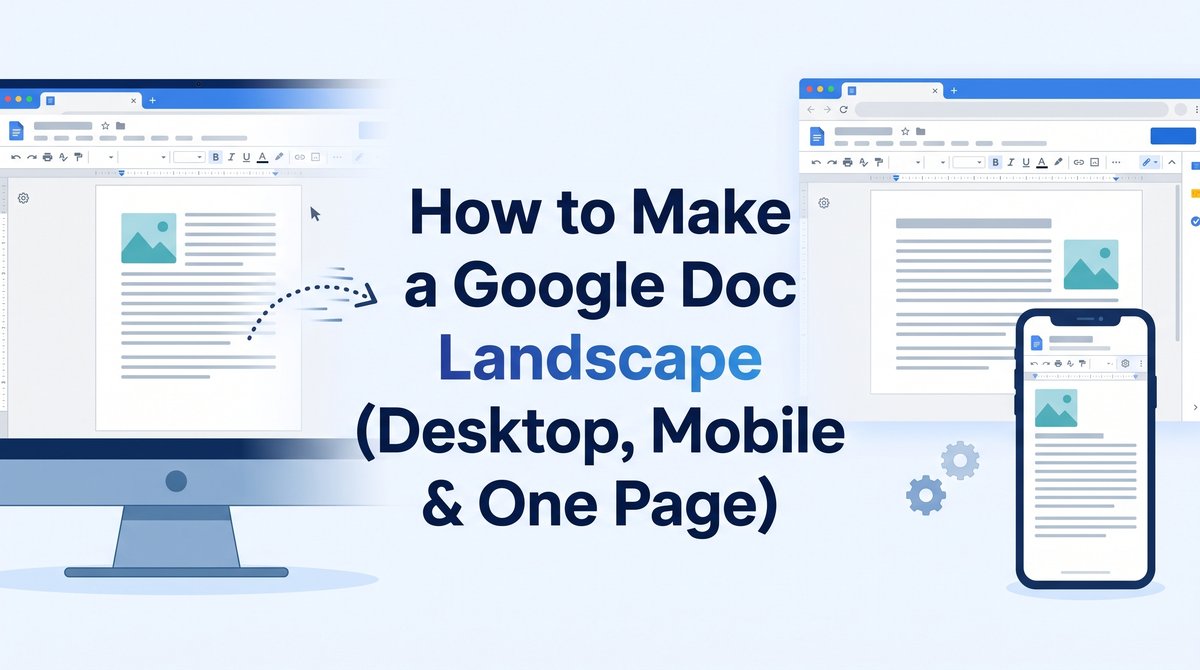
How to Make a Google Doc Landscape (Desktop, Mobile & One Page)
Change a Google Doc to landscape in 3 clicks, rotate just one page, fix the missing option, and export a clean landscape PDF. Free guide.
 От Admin•5 min read•Oct 22, 2026
Wide tables, charts, timelines and certificates rarely fit on a tall portrait page. Google Docs lets you switch to landscape in seconds, but the option hides in a few places, and things often break when you export the file to PDF.
This guide covers every method, plus how to keep your landscape layout intact once the document leaves Google Docs.
Quick Answer
File → Page setup → Landscape → OK.
Don't see "Landscape"? Your doc is in Pageless mode. In Page setup, switch to the Pages tab first.
How to Make a Google Doc Landscape on Desktop
Open your document in Google Docs.
Click File in the top menu.
Select Page setup (shortcut: Ctrl + Shift + P on Windows, Cmd + Shift + P on Mac... if your browser allows it).
Make sure the Pages tab is selected.
Under Orientation, choose Landscape.
Click OK.
Every page now flips to landscape. While you're in Page setup, you can also adjust margins, paper size (A4, Letter, Legal) and page color.
Want landscape every time? Click Set as default before pressing OK. All new docs will open in landscape.
How to Make Only One Page Landscape
Need one wide table inside an otherwise portrait report? Use section breaks.
Place your cursor at the start of the content that should be landscape.
Go to Insert → Break → Section break (next page).
Click inside the new section.
Open File → Page setup.
Under Apply to, select This section (or "This section forward").
Choose Landscape and click OK.
To return to portrait after it, add another section break and repeat with Portrait.
Tip: Turn on View → Show section breaks to see exactly where each section starts and ends.
How to Change Google Docs to Landscape on Mobile
Android
Open the doc in the Google Docs app and tap the edit (pencil) icon.
Tap the three-dot menu (top right).
Tap Page setup → Orientation → Landscape.
Tap back to save.
iPhone & iPad
Open the doc and tap the three-dot menu.
Tap Page setup → Orientation.
Choose Landscape and tap Done.
Landscape Option Missing? Common Fixes
Problem | Fix |
No "Orientation" option | Doc is Pageless. File → Page setup → Pages tab |
Whole doc rotated instead of one page | You picked "Whole document" under Apply to. Add a section break, choose This section |
Can't tell where landscape starts | View → Show section breaks |
Print preview still shows portrait | Re-check Page setup, then in the print dialog set Layout to Landscape |
Table still cut off | Reduce margins to 0.5" or switch paper size to Legal |
How to Save a Landscape Google Doc as a PDF
Most landscape docs end up as PDFs (reports, certificates, handouts). In Google Docs:
File → Download → PDF Document (.pdf)
Google Docs keeps the orientation of each section, so mixed portrait/landscape pages export correctly. If you downloaded it as Word instead, convert it with our free Word to PDF converter and the layout stays exactly as you set it.
Fix Landscape Problems After Exporting
Sometimes the PDF still comes out wrong: a page appears sideways, a scanned attachment is upside down, or the file is too heavy to email. Here's how to fix each one with Tools4PDF, free and in your browser:
Page showing sideways? Use Rotate PDF to turn single pages or the whole file to landscape and save it permanently.
Need to combine portrait and landscape files? Export each doc separately, then join them with Merge PDF.
Only need the landscape pages? Pull them out with Split PDF.
Page numbers missing after merging? Add them back with Add Page Numbers.
File too big for email or upload? Shrink it with Compress PDF.
Got a landscape PDF you need to edit? Turn it back into an editable file with PDF to Word, make changes, and re-export.
Sharing something confidential? Lock it with Protect PDF.
No signup, no installs. Browse all PDF tools.
When Should You Use Landscape?
Wide tables and spreadsheets pasted from Excel or Sheets
Charts, Gantt charts and project timelines
Certificates, awards and posters
Slide-style handouts and brochures
Side-by-side comparisons
Stick to portrait for letters, essays, resumes and long-form reading.
Frequently Asked Questions
How do I make a Google Doc landscape?
Go to File → Page setup, select Landscape under Orientation, and click OK.
Can I make just one page landscape in Google Docs?
Yes. Insert a section break (next page), then in Page setup choose "This section" under Apply to and select Landscape.
Why is the landscape option missing in Google Docs?
Your document is in Pageless format. Switch to the Pages tab in Page setup and the orientation options appear.
Can I change orientation in the Google Docs mobile app?
Yes, on both Android and iOS: three-dot menu → Page setup → Orientation → Landscape.
Will landscape pages stay landscape when I download a PDF?
Yes. File → Download → PDF keeps each section's orientation. If a page still looks wrong, fix it with Rotate PDF.
How do I set landscape as default in Google Docs?
Choose Landscape in Page setup and click "Set as default" before clicking OK.
Final Thoughts
Switching a Google Doc to landscape takes three clicks, and section breaks let you mix orientations in one file. Once you export, keep Tools4PDF handy to rotate, merge, compress or convert your landscape PDFs in seconds.
Написано Admin
Редакционный Специалист
Похожие Статьи
How to Edit a PDF on Mac: 3 Free Methods | Tools4PDF
Edit a PDF on Mac with Preview, a free online editor or Word conversion. Step-by-step instructions, limits and fixes for scanned files.
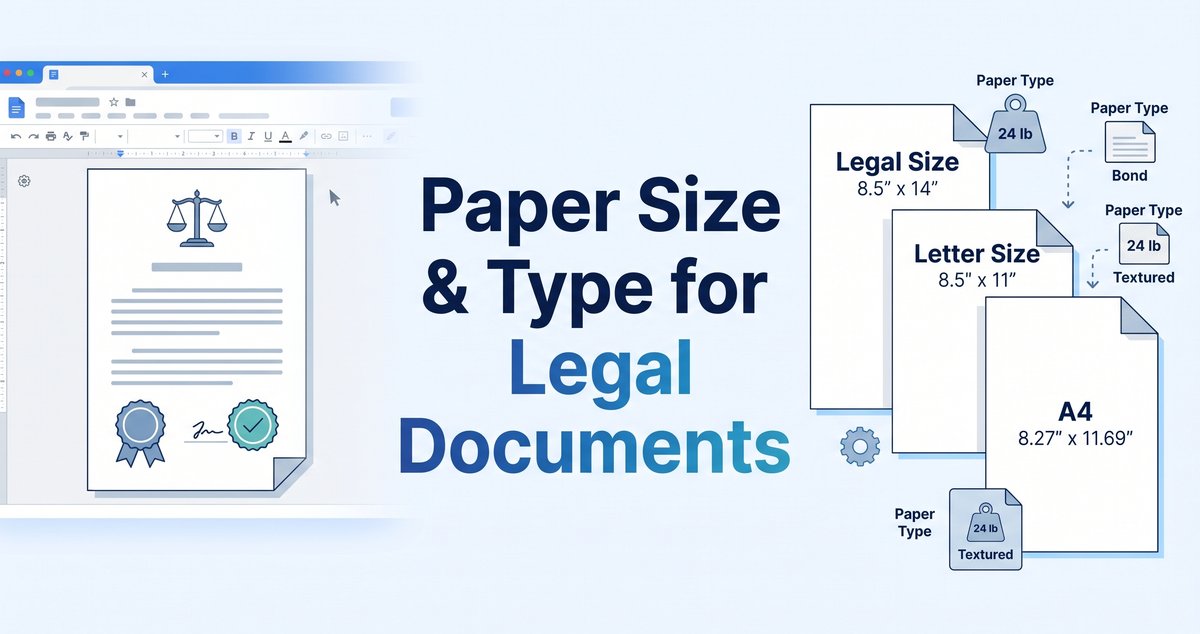
Legal Paper Size and Type: Complete Guide | Tools4PDF
Learn when to use Letter, Legal or A4, which paper weight suits contracts and filings, and how to create correctly sized PDFs online.
How to Redline a PDF Free in 3 Easy Steps?
Learn how to redline a PDF without any cost with Tools4PDF's Edit PDF tool. Draw red lines, mark changes, and share a clear