How to Merge Word Documents Freely? Step by Step Guide
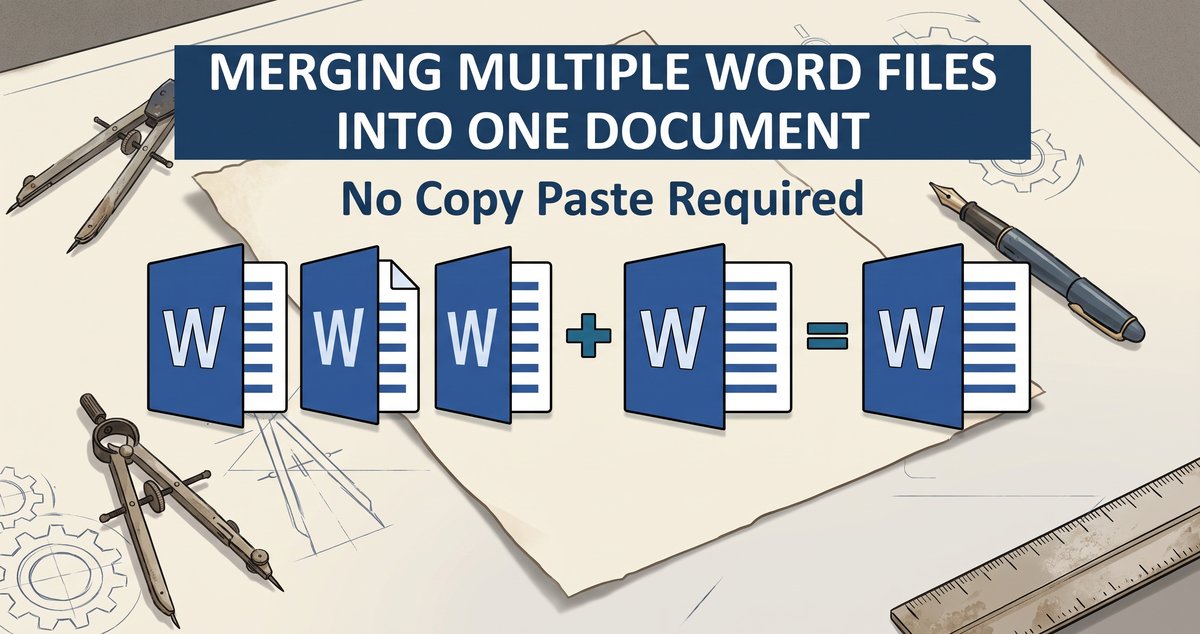
Learn how to merge Word documents into one clean DOCX file using Tools4PDF (fast, free online) or Word's built-in Text from File feature.
 بقلم Shiza Zahid•5 min read•Sep 21, 2026
Merge Word files into one document using two reliable methods: Tools4PDF for a fast online merge, or Word's built-in option if you prefer working offline.
When you need one clean DOCX file, copy-pasting usually breaks the formatting. Merging is faster, cleaner, and easier to fix. Here's how to merge Word documents, and what the difference is between "merging" and "combining."
Merging vs. Combining: What's the Difference?
People often use these terms interchangeably, but they can mean slightly different things.
Merging usually means joining complete documents into a single file, in a specific order, with pages flowing one after another.
Combining can mean the same thing, but for some users it also means inserting parts of one document into another like adding a section, a table, or a chapter.
Fastest Method: Merge Word Documents with Tools4PDF
If you want the easiest way to merge Word files, Tools4PDF is usually the smoothest option. It works on any device, and PDF is the safest intermediate format for keeping your layout stable.
What You Need Before Starting
Your Word files saved as DOCX
A browser (or the Tools4PDF mobile app, if available)
Optional: a clear file order, like naming them 01, 02, 03
Step by Step: Merging Word Files Using Tools4PDF
Because Word files don't always merge cleanly across different templates, we merge them through PDF first and then export back to Word.
1. Merge the PDF files
Open the Merge PDF tool.
Drag and drop your Word files the tool will convert them to PDF automatically.
Choose "Merge files" if each file should stay grouped together.
Choose "Merge pages" if you want to mix pages one by one.
Click "Merge PDF."

2. Export the merged file back to Word
On the results page, click "Export As."
Select "Word (.docx)."
Download your merged Word file.
Why This Method Is Better for Preserving Formatting
PDF locks the layout. This helps if your Word files contain:
Different fonts and style sets
Tables and page breaks
Headers, footers, and numbering
Different margin or paper size settings
If you've ever merged two DOCX files and watched your heading sizes change, this is the fix that avoids most of that problem.
Tools4PDF vs. Word: Quick Comparison
Feature | Tools4PDF (Merge via PDF) | Word "Text from File" |
Keeps layout consistent | Strong | Depends on styles |
Works on Mac, Windows, and mobile | Yes | Mostly desktop |
Easy to reorder | Yes | Limited |
Good for many files | Yes | Fine for a few files |
Setup effort | Low | Medium |
How Many Word Files Can I Merge at Once?
This depends on your plan and workflow.
If you merge files often or work with many documents, a paid/Pro plan makes batch work easier. On a free plan, you'll hit daily limits faster, so it's best suited for occasional quick merges.
If your final file turns out large, compressing the merged PDF before exporting it back to Word can help.
How to Merge Word Files in Microsoft Word
If you need to stay offline or you're already working in Word, use the built-in "Text from File" feature. It isn't as consistent for formatting, but it's reliable enough for documents using the same template.
Step by Step: "Text from File" on Windows
Open the Word document you want to use as the main file.
Place your cursor where the next document should start.
Open "Insert."
Click "Object" (sometimes found under the Text group).
Select "Text from File."
Choose the file you want to insert.
Click "Insert."
Tip: Hold "Ctrl" to select multiple files at once.
Step by Step: "From File" on Mac
Open your main Word document.
Place your cursor where you want the next file inserted.
Open "Insert."
Select "Text" > "From File…"
Choose your file, then insert it.
Where Is "Text from File" Located in Word?
On Windows: "Insert" > "Object" > "Text from File"
On Mac: "Insert" > "Text" > "From File…"
How to Keep Word Document Order Correct
Word inserts files in the order they appear in the file picker, which isn't always what you expect.
The simple fix is naming your files like this:
01_Intro.docx
02_Chapter-One.docx
03_Chapter-Two.docx
04_Appendix.docx
This keeps the order predictable, whether you're using Word or Tools4PDF.
Merging Versions with Tracked Changes
If you're merging input from multiple reviewers, things can get messy fast. There are two cleaner options.
Option A: Accept Changes First, Then Merge
Open each file.
Accept or reject tracked changes.
Delete resolved comments.
Merge the final, clean versions.
Option B: Use Word's Combine Feature
In Word, go to "Review" > "Compare" > "Combine" to merge two versions of the same document while keeping revision attribution intact.
This works best if you have:
One original document
One edited version
A need to track who changed what
Can I Merge Word Documents Without Losing Formatting?
Sometimes. It depends on how similar the files are.
If your files use different templates, fonts, or heading styles, Word tends to apply the main document's style to everything which is why content can shift.
Rule of thumb: if formatting needs to stay identical, merging through PDF first is usually the safer route.
Fixing Common Formatting Issues After Merging
Even with a good tool, a merged document sometimes needs a bit of cleanup.
1. Page Numbers Restart or Reset
Insert a section break before the problem area.
Click the page number.
Open "Page Number" > "Format Page Numbers."
Select "Continue from previous section."
2. Headers and Footers Change
Double-click the header/footer area.
Use "Link to Previous" to control what carries over.
Turn it off where a section needs a different header.
3. Fonts and Styles Look Inconsistent
Open the "Styles" panel.
Apply the same Heading and Body styles throughout the document.
If it looks messy, use "Clear Formatting" on the problem sections, then reapply styles.
When You Shouldn't Merge DOCX Files
Merging isn't always the right move. Avoid it when:
You need a live link to a source document that must update automatically.
Multiple people are collaborating on separate files at the same time.
Your document depends on advanced Word features like master documents.
In these cases, sharing a PDF bundle or using links might work better.
Why Merge Word Files at All?
Because it saves time and reduces mistakes. Merging Word files is useful when you're dealing with:
Contracts from multiple parties
Multi-chapter reports
School packets and handouts
Policies, SOPs, and documentation sets
Instead of juggling separate attachments, you end up with one final document ready to share. Merge your Word documents now with the Merge PDF tool and get it done in under a minute.
بقلم Shiza Zahid
أخصائي تحرير
مقالات ذات صلة
How to Redline a PDF Free in 3 Easy Steps?
Learn how to redline a PDF without any cost with Tools4PDF's Edit PDF tool. Draw red lines, mark changes, and share a clear
What Is a PDF Definition, Benefits, and History
Learn what a PDF is, how it works, its key benefits, security features, and history. Then edit, compress, or convert PDFs free